Why the PDF can be right but the print can be wrong
The maker calculates the poster layout and exports each tile onto the paper size you selected. The PDF reader and printer driver can still scale those pages. Fit, Shrink and automatic borderless expansion may change the size after export, which matters for frames, patterns and measured artwork.
Use a consistent print checklist
- Load the same paper size used in the maker, such as A4 or Letter.
- Open the downloaded PDF in a viewer that exposes page scale.
- Select Actual size or 100%. Turn off Fit or Shrink.
- Use single-sided printing and check page orientation.
- Keep printer-safe margins. Avoid borderless modes that enlarge the page automatically.
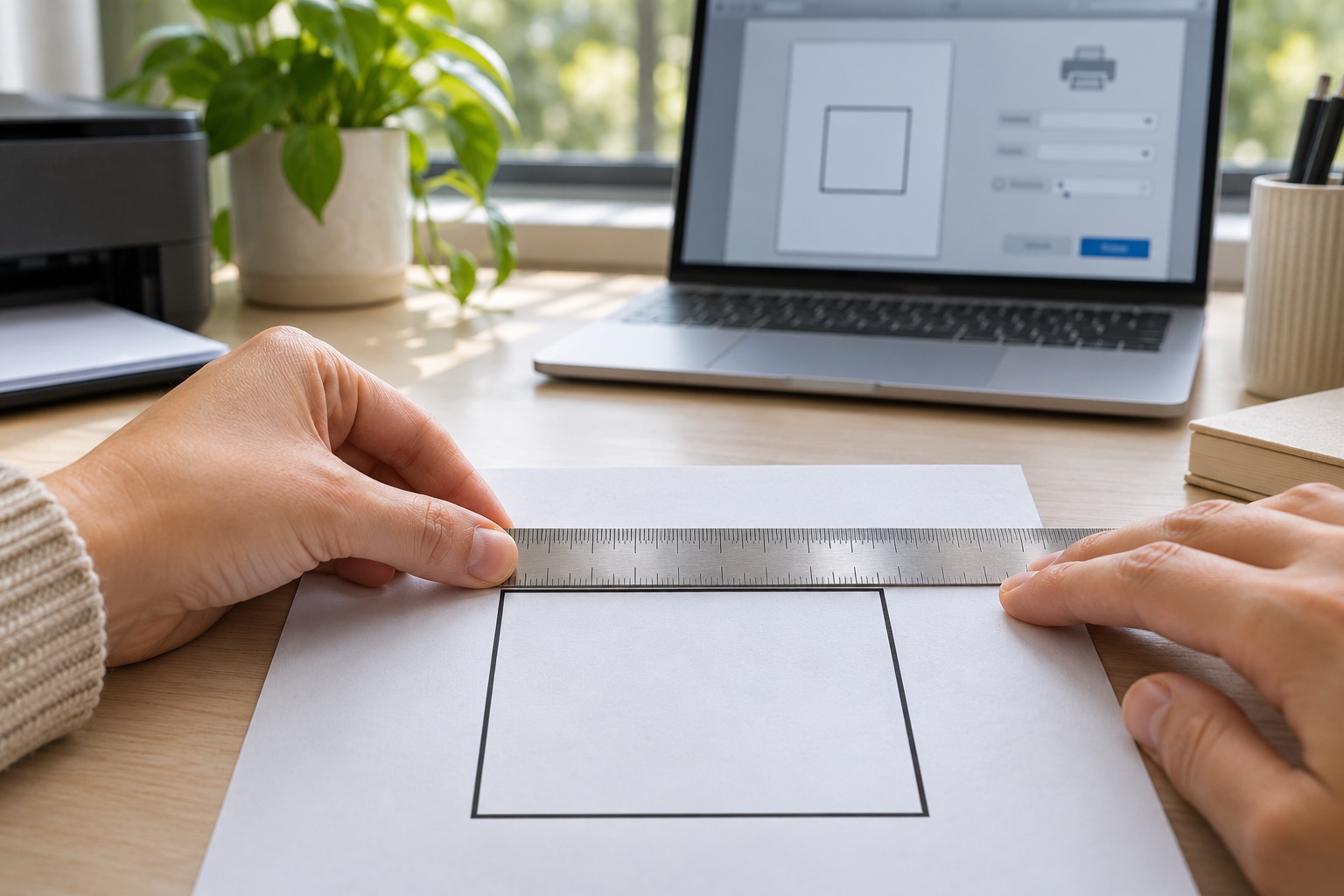
- Print one tile and measure a known distance before completing the job.
A simple scale test
If a 100 mm feature in your source design measures 97 mm on paper, something has scaled it to approximately 97%. Printing more tiles will repeat the same error. Change the print settings first.
When your artwork has no known measurement, create a small test design containing a measured line and use the same paper and export settings. Remove the test design before preparing your final poster.
When a phone print dialog hides the scale
Save the PDF to Files or Downloads instead of printing a screenshot of the preview. If your mobile print dialog does not offer a way to preserve scale, transfer the PDF to a computer or a PDF application that does. Do not promise an exact physical size from an unverified mobile default.
If a tile is clipped rather than scaled
Some printers cannot print near the sheet edges. Keep 100% scale and increase margins in the maker, then export a new PDF. Selecting Fit may hide clipping by shrinking the page, but it also changes your intended dimensions. Reprint all tiles with one consistent layout.
Frequently asked questions
Should I use the printer’s Poster mode too?
No. This PDF is already divided into sheets. A second tiling step can split each tile again. Print the PDF pages normally at 100%.
Can I mix A4 and Letter?
Use the paper size selected for the exported PDF. Switching sizes in the print dialog can scale or clip the tiles.
Why do borderless prints fail to align?
Some drivers enlarge the image to cover the paper edges. Use a retain-size setting if supported, or return to printer-safe margins and test a tile.
Ready to put it on paper?
Upload your own image or choose a free library design. Check the size, select your pages and download a printable PDF.